
ADS58C28EVM
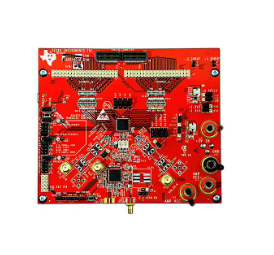
This is the user’s guide for the ADS58C28 EVM Rev B. The ADS58C28 is a dual channel, 11-bit, 200MSPS analog-to-digital converter. This EVM is specifically suited for interfacing with TI’s TSW1200 EVM to capture and display waveforms from the ADC. The EVM schematic, BOM, and layout files can be found in the design package in the ADS58C28 EVM product folder on www.mroic.cn
1 Software Control
1.1 Installation Instructions
• Openfolder named: ADS58C28_ADS42xx_Installer_vxpx (where xpx represents the latest version)
• Double-click: setup.exe
• Follow on-screen instructions to complete GUI installation
– Wait for "ADS58C28/ADS42xx_ Installer" initializing screen to complete
– Click "Next" to install files in the default destination directory
– Select "I accept the License Agreement" and click "Next"
– Select "Next" on the summary page– Wait for files to load and then click "Next"
– Onceall files are installed click "Next"
• If Windows Logo Message window appears, click "Continue Anyway" • Onceinstalled, launch by clicking on the ADS58C28_ADS42xx_GUI_vxpx program in Start>Texas Instruments ADCs
• Whenplugging in the USB cable for the first time, you will be prompted to install the USB drivers.
– OntheWelcome to the Found New Hardware Wizard window select "No, not at this time"
– Select "Install the software automatically" button on the next window
– Select "Continue Anyway" on the Windows Logo Message window
– If computer can not find the drivers automatically then you can access them directly in the install directory: C:\Program Files\Texas \Instruments\ADS58C28_ADS42xx\data
– Click "Finish" once complete
1.2 Software Operation
The software allows full programming control of the ADC device. Figure 1 shows the GUI front panel that has two register tabs: Top Level and Advanced. The Top Level tab provides an interface to the most used registers. The Advanced tab includes less used registers and provides an option to manually input address and data values.
1.2.1 Top Level
Figure 1 shows the Top Level tab of the register user interface. Below is a brief explanation of the controls. Please refer to the ADS58C28 datasheet for more detailed explanations of the register functions as needed.
● Reset: Device reset, click this switch to reset the device.
● PNDGlobal: Device reset, click this switch to reset the device. Device power down, click this switch on to power down the device.
● LVDS_CMOSCtrl: Select this box for LVDS or CMOS output format.
● Digital Funct Ctrl: Enable or disable three digital functions:
SNRb/Gain Disable– SNRBoost, gain, test patterns, and offset correction are disabled.
SNRb Enable Only– SNRBoost is enabled; gain, test patterns and offset correction are disabled.
SNRb/Gain Enable– SNRBoost, gain, test patterns, offset correction are enabled.
● Gain_chA: Set this box for gain of channel A.
● Gain_chB: Set this box for gain of channel B.
● Test Pattern: Select device test pattern.
● High Perf Mode: High performance mode enable or disable.
● High Freq Mode ChA: High frequency Mode enable for channel A.
● High Freq Mode ChB: High frequency Mode enable for channel B.
● LowSpeed Mode En: Low speed mode enable or disable.
● LowSpeed Mode ChA: Low speed mode for channel A.
● LowSpeed Mode ChB: Low speed mode for channel B.
● LVDS Data Strength:: Set the data strength from this switch.
● LVDSClkout Strength: Set the output clock strength from this switch.
● CMOSClkStrength: Set CMOS output clock strength from this switch.
● SNRBoost ChA: SNRBoost enable or disable for channel A.
● SNRBoost ChB: SNRBoost enable or disable for channel B.
● SNRBoost Filter ChA: Select SNRBoost filter for channel A.
● SNRBoost Filter ChB: Select SNRBoost filter for channel B.
1.2.2 Advanced Level
Click on "Advanced" tab on the GUI to bring the advanced panel to the front. On this panel user can write address and data of any register into the address/data boxes (as shown in Figure 2, "45" is address and "4" is data). Press Enter on the key board once data is entered or click "Send All" button on the GUI to send address and data from the boxes to ADC. The address and data are shown in the display box located at right side of the panel. In addition, there is group of switches used for output offset functions, SNRBoost pin overwrite, and a group of LEDs used to designate a custom test pattern.
1.2.3 Register Control
● Send All: Sends all the register configurations on the panel to the device
● Read All: Not active
● Save Regs: Saves the register configuration to text file
● Load Regs: Loads a register file from a text file. After load register the relative switches and selecting boxes are automatically updated.
— Select Load Regs button.
— Double click on the desired register file.
— Click on Send All to ensure all of the values are loaded properly.
1.2.4 Misc Settings
● Device Selection: Select ADS58C28 for proper operation
● Reset USB: Toggle this button if the USB port is not responding. This generates a new USB handle address.
● Show USBPort: Allows user to change USB port configuration. Default setting is appropriate for the EVM RevB.
● Exit: Stops the program
2 BasicTestProcedure
ThissectionoutlinesthebasictestprocedurefortestingtheEVM.
2.1 TestBlockDiagram
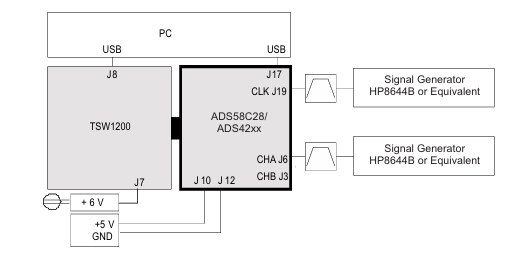
Thetestset-upforgeneral testingof theADS58C28withtheTSW1200capturecardisshowninFigure3.
- TLA2024EVM-PDK_TI(德州仪器)中文资料_英文资料_价格_PDF手册
- INA229_239EVM_TI(德州仪器)中文资料_英文资料_价格_PDF手册
- DAC8832EVM-PDK _TI(德州仪器)中文资料_英文资料_价格_PDF手册
- LP8557IEVM_TI(德州仪器)中文资料_英文资料_价格_PDF手册
- LAUNCHXL-F28027F TI(德州仪器)中文资料_英文资料_价格_PDF手册
- DLPDLCR160CPEVM DLP160CP TI(德州仪器)中文资料_英文资料_价格_PDF手册
- THS4631DDAEVM TI(德州仪器)中文资料_英文资料_价格_PDF手册
- DAC3482EVM TI(德州仪器)中文资料_英文资料_价格_PDF手册
- THS4302EVM TI(德州仪器)中文资料_英文资料_价格_PDF手册
- ADS7038Q1EVM-PDK_TI(德州仪器)中文资料_英文资料_价格_PDF手册
- LM3450AEV230V30/NOPB_TI(德州仪器)中文资料_英文资料_价格_PDF手册
- TPS72728DSEEVM-406_TI(德州仪器)中文资料_英文资料_价格_PDF手册
- WL1835MODCOM8A_TI(德州仪器)中文资料_英文资料_价格_PDF手册
- TAS5424BQ1DKDEVM_TI(德州仪器)中文资料_英文资料_价格_PDF手册
- ADS7042EVM-PDK_TI(德州仪器)中文资料_英文资料_价格_PDF手册
 工商网监
工商网监